
Knowledge base
Contacts..
Importing Contacts Opportunities via CSV
What is a Contact?
A contact refers to any individual or business stored in your ScaleMaestro CRM. Contacts can include leads, prospects, customers, or partners with whom you interact. Each contact record typically contains details such as:
. Name & Contact Information (Email, Phone Number, Address)
. Company & Job Title
. Lead Source & Engagement History
. Tags & Custom Fields for Organization
. Interaction Logs, Notes, and Tasks
Step 1: Access Import Option Navigate to theOpportunitiessection and click on thethree dots (options menu).Choose theImportoption to begin the process.
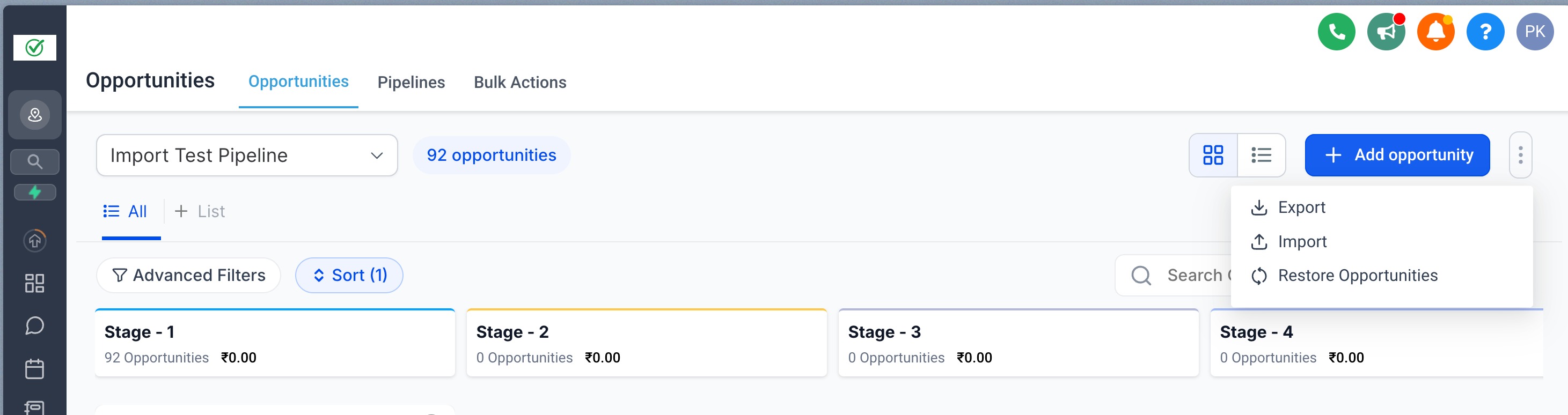
Step 2: Select Objects to Import
In the import screen, select both Contacts and Opportunities as the objects you want to import and click on "Next".
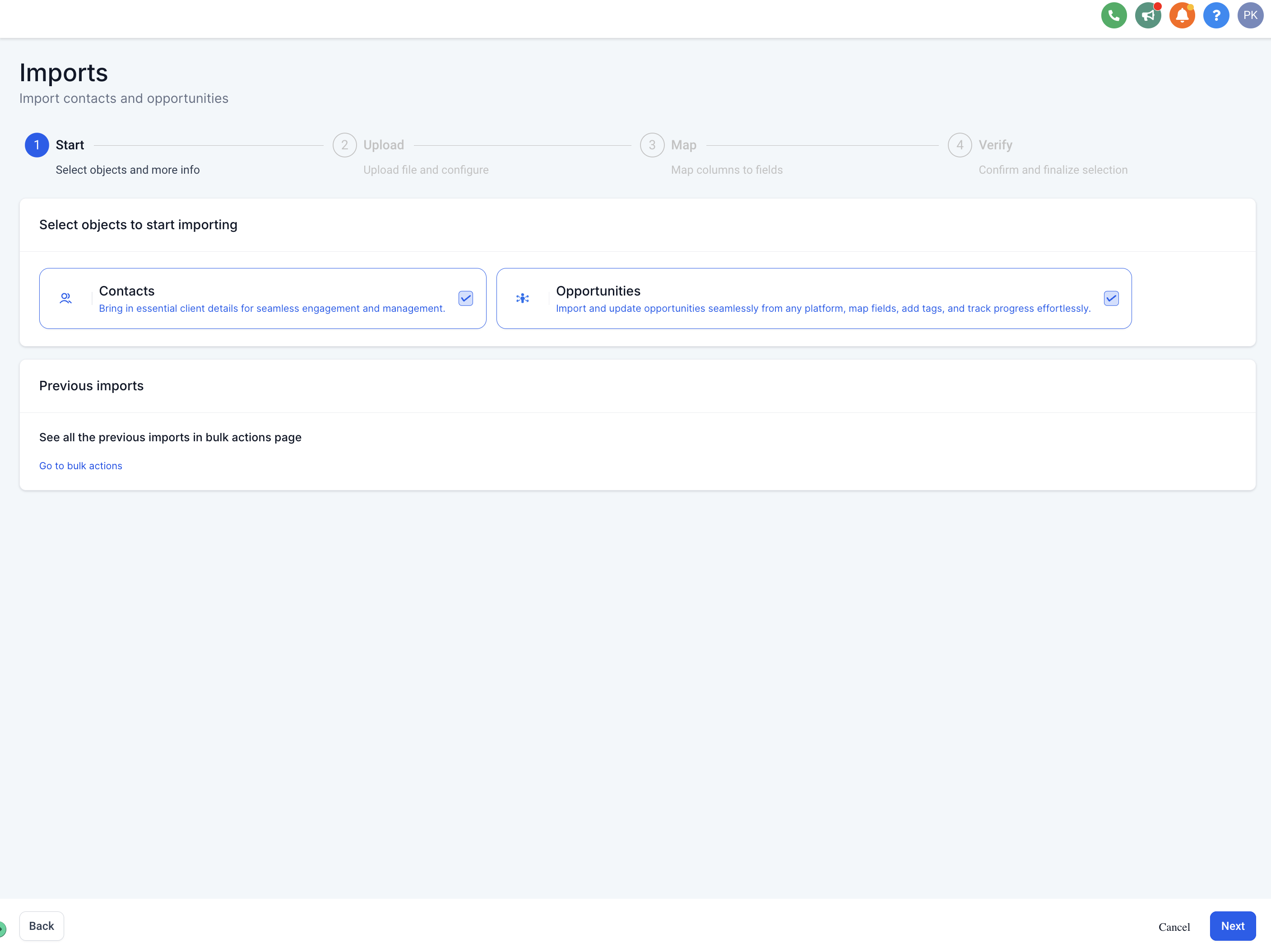
Step 3: Upload CSV File
. Upload a CSV file containing details for both Contacts and Opportunities.
. Decide for each object whether you want to Create, Update, or Create & Update records during the import.
. If an Opportunity IDis provided in the CSV, the opportunity will be updated. If not, a new opportunity will be created.
. Click on "Next"

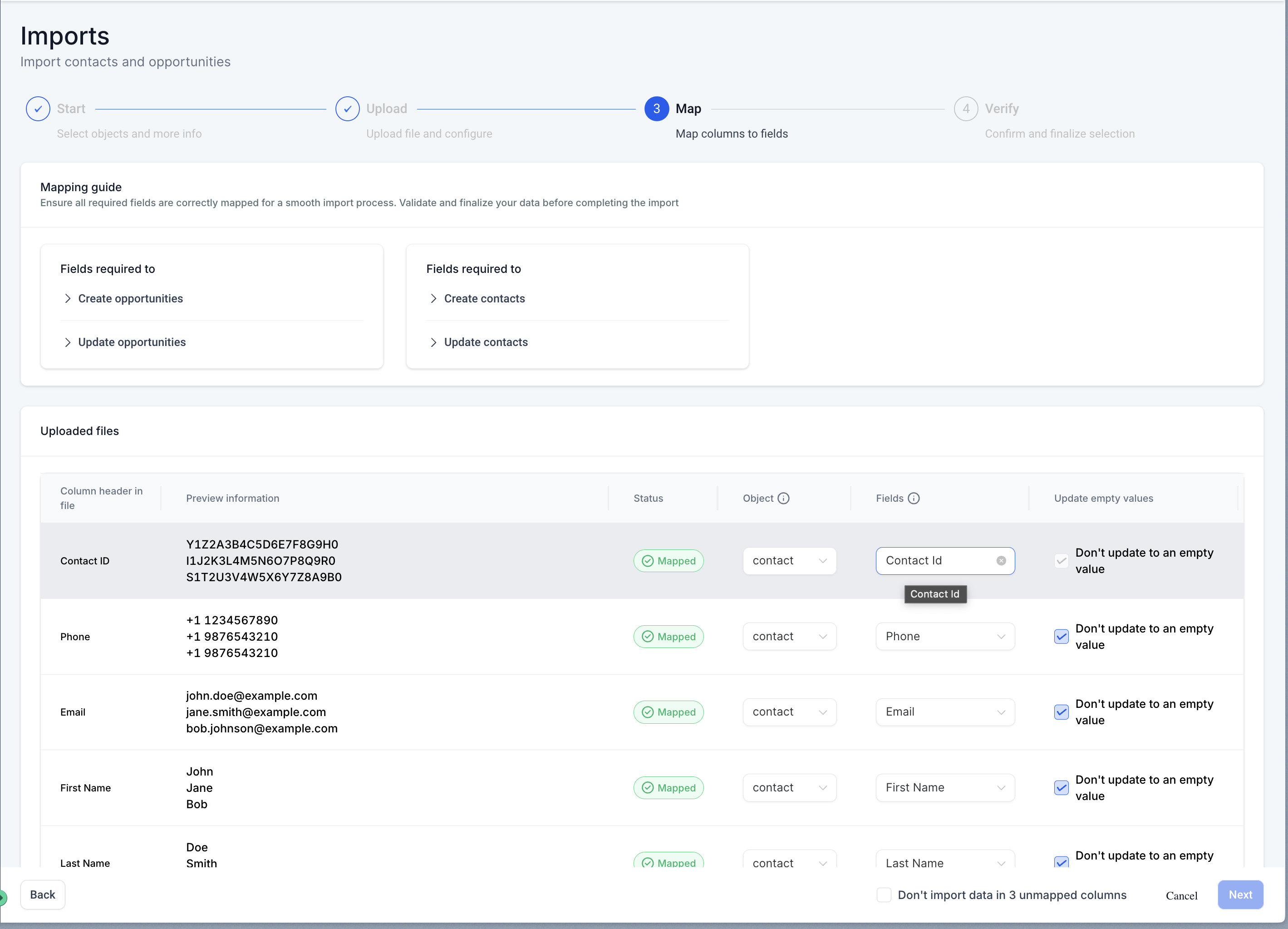
Step 4: Map fields
. Map fields from the CSV to the correct object fields.
. Ensure you are selecting the right object(Contacts or Opportunities) when mapping each field to avoid errors.
. This feature also allows the creation ofcontactswith multiple email addresses and phone numbers. These additional details will be added automatically during the import process.
. If Contacts and Opportunities are on the same line in the CSV, they will be automatically mapped to each other.
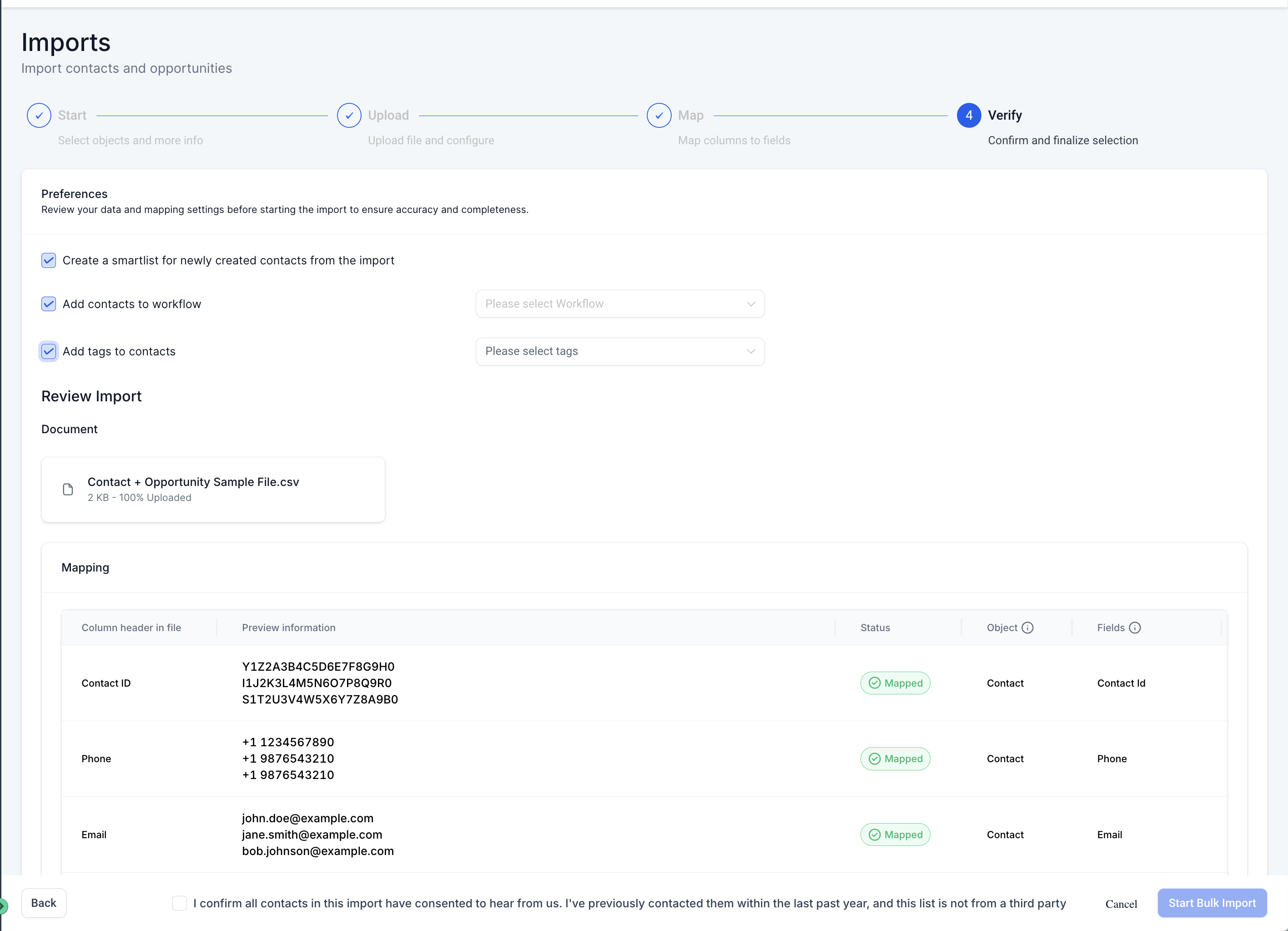
Step 5: Verify and Import
. Review your mappings, then confirm and proceed with the import.
. You can also choose to create a smartlist, add contacts to a workflow or add a new tag to the imported contacts.
Step 6: Monitor Import Status
. You can monitor the progress and status of the import via theContactsandOpportunities Bulk Actions Pages.
. Both contacts and opportunities imports will appear in the same place underBulk Actions.
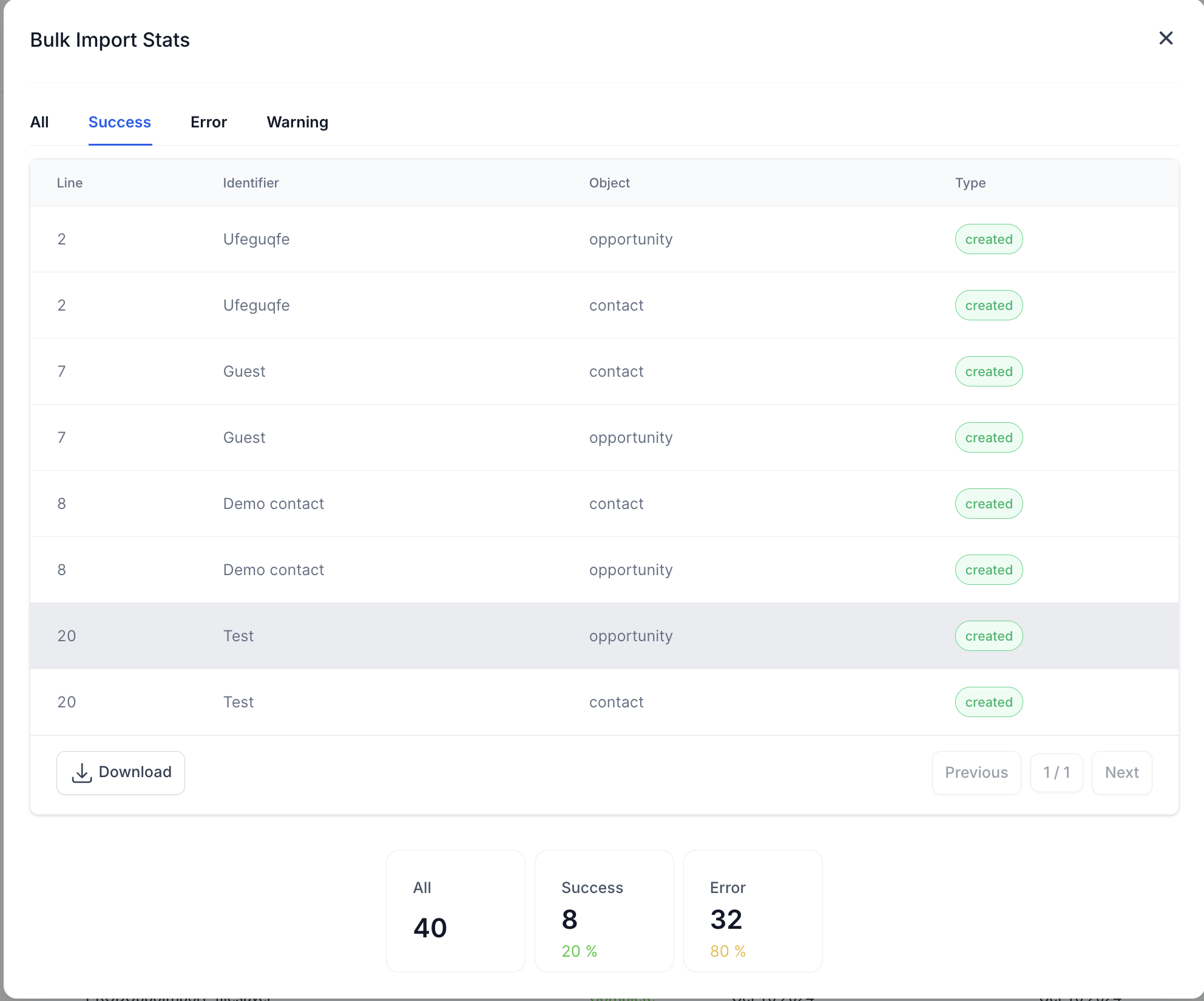
. Click on the "Show Stats" button to view Stats of the import - you can also download the error log and view further details about the error and how to fix them in the "Error" tab
To get more information about errors and individual object imports, do check out the
following articles:
1. Importing Contacts
2. Importing Opportunities
FOLLOW US


CUSTOMER CARE
LEGAL & COMPANY
Copyright 2025. ScaleMaestro. All Rights Reserved.